Mandriva Running On Virtualbox

0 comments

This is the second distro I try some years ago after Red Hat 7. It KDE distro and need powerful PC to run it. Then I try Fedora before stick to Ubuntu about two or three years ago. Mandriva had free version that you can download at their homepage. Its DVD ISO file size around 4.3 Gbyte that need long time to download. I just download Mandriva One 2010 Spring installable live CD size at 680 MB. Anyway if you have budget, you also can buy DVD there. So I like to share Mandriva One 2010 Spring that I installed on Virtualbox. Lets see it,

01. Booting Mandriva One 2010 Spring.


02. Language selection.


03. Accept the license.


04. Select timezone.


05. Date, Clock and Time Zone settings.


06. Select Keyboard layout.


07. Getting start to install.


08. Partitioning wizard.


09. Package information.


10. Start to install.


11. Please wait information.


12. Create password for security.


13. Boot entries.


14. Restart information.


15. Restarting the system.


16. Press enter after remove the medium.


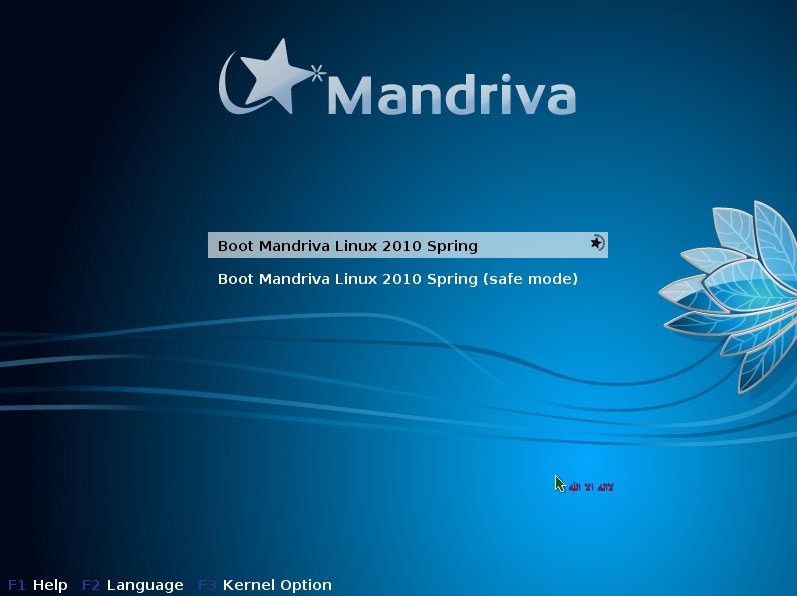
17. Boot Mandriva Linux 2010 Spring.

18. Downloading some file.


19. Set administrator password and enter a user information.


20. Welcome screen for first time.


21. Thank you information.


22. Select user to login.


23. Some default ads of Mandriva.


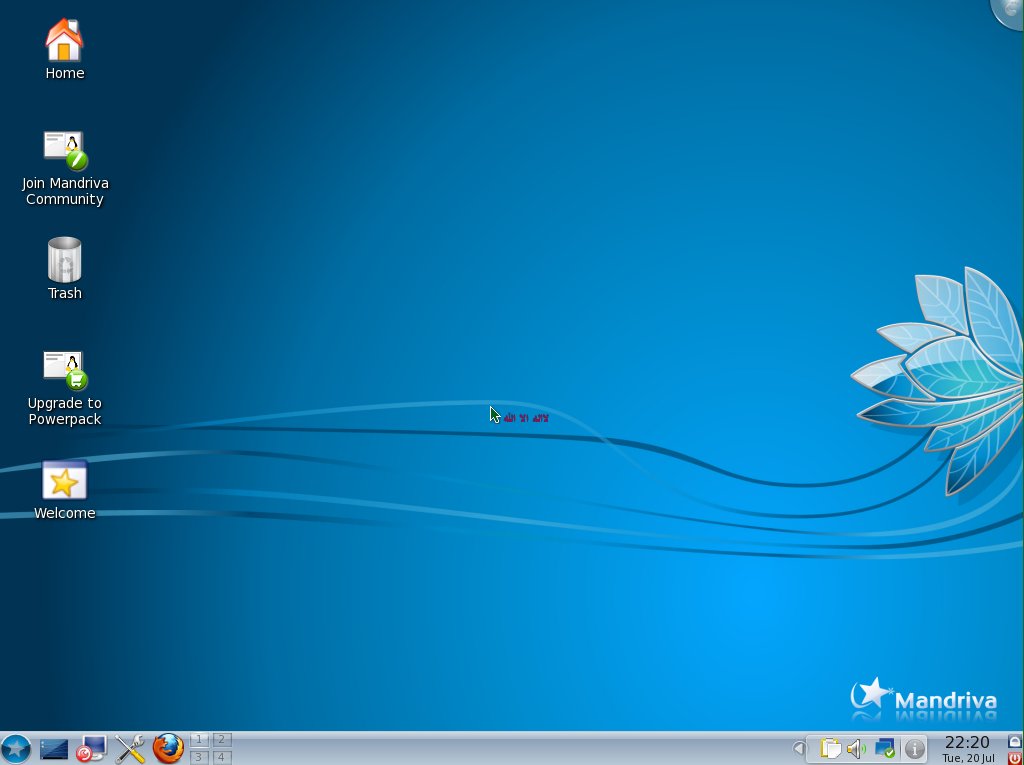
24. Mandriva One 2010 Spring complete installed and log in.

Hope this article can help Mandriva user if they have problem to install it.

Share


BlankOn Sajadah - Installation

0 comments

Just share my experience how to install BlankOn Sajadah distro. If you are not using Sabily, you should consider to use BlankOn Sajadah especially for Indonesian. It cover fully Indonesian language from start installation till completed. In BlankOn Sajadah you can find extra Islamic software compare with Sabily call "HadisWeb.desktop". I will make an article about it later. Lets see a process of BlankOn Sajadah installation on my Sabily by using Virtualbox. This process should be same if you install it on a new system.

1. Starting Installation process.


2. Choose your location.


3. Select your keyboard layout.


4. Manage your disk space.


5. Fill user name and password.


6. Ready to install on your system.


7. Installation in progress.


8. Installation finished. Restart PC.


9. BlankOn Sajadah default screen.


10. Islamic software inside BlankOn Sajadah.


One more time I want to congratulate to BlankOn Sajadah group for their hardworking on this distro. Hopefully we can continuous study for development of an Islamic software for our people to get advantage from it.

Share


Oregano - Electronics Schematic Drawing And Simulation Software

4 comments

This is another Electronics software that I like and always use for my hobby and jobs. Called "Oregano", you can use it for drawing a schematic diagram and it also able to do simulation. The most important it is free to copy and install. So if you are an electronics technician or engineer, this software can help you too in order to draw schematic diagram and make simulation on it. Here some of schematic that I draw by using Oregano. For me, it is very simple and easy to use software. Be inform that this software only available for Linux Ubuntu family only and not support for Windows base operating system.

Simple power supply schematic diagram.


Voltage monitor schematic diagram.

Sabily 10.10 codename: "Al-Quds"

0 comments

Sabily team already decide their codename for version 10.10 will be "Al-Quds". So what is "Al-Quds"? If searching on Wikipedia, Al-Quds means City of Jerusalem. In my thinking this version is something like Gaza version. So everybody lets work for Sabily Al-Quds.


Picture of Masjid Al-Aqsa Jerusalem taken from Sabily homepage.

Taqaballahu Minna Wa Minkum

0 comments

Ramadhan 1431 going to left us. Hopefully we can meet it again next Hijr. I also pray and wish a du'a from Allah to everybody for successfully completed your fasting and ibadah. Welcome Eid Fitri.
Taqaballahu Minna Wa Minkum.