Islamic Software Inside Sabily Gaza release

3 comments

I list out an Islamic software that include inside Sabily Gaza release. Their software engineer added some new software that is very useful for Muslims. Here are all the software,

1. Hijra Applet - Calendar for Muslims.


2. Minbar Prayer Times - Alarm for your praying time. Able to play athan.


3. Monajat Applet for supplications - Monajat and dua for you. Appears follow by your setting.


Example of Monajat pop up.


4. Noor - Holy Quran browser.


5. Othman Mus-haf - Othman Electronics Quran Browser.


6. Thwab - Thwab Electronic Encyclopedia. Sample book included.


7. Zekr - For study Holy Quran with recitation and translation. This is my favourite software in Sabily.


Three Islamic software were put under Science category and all in Arabic font and language.

8. Fsool - the Sira of The prophet Muhammad.


9. Rejaal - a flash bibliography of 60 Sahabi around the prophet Muhammad.


10. Arab Eyes Qamoos - Arabic to English dictionary.


We hope in the next version the last three software can be select to English language.
This ten software is very good and useful software for Islamic people all over the world. Hopefully soon many Muslims software engineer will participate in Sabily in order to spread it to all over the world. InsyaAllah.

Ubuntu Sabily Run Inside Windows 7

4 comments

Last week my friend request me to install Sabily inside his windows 7 PC because he want to browse around Sabily before decide to make full installation. As normal I will use Virtualbox software to do the job. Now we can share the step how to install Sabily or Ubuntu inside windows 7. First of all we need to download Virtualbox for windows at Virtualbox download page.

Virtualbox download page. Download latest 3.1.2 version for Windows.


Setting up for this new version of Virtualbox inside Windows 7 had a little different from a previous version.
I show again how to setup it on Windows 7.
After finished your installation of Virtualbox, run it.
Welcome screen appeared, just click Cancel, unless you want to register.

Click on New icon to create new Virtual Machine.
VM Name and OS Type GUI appeared.
Fill your VM name and select your OS type. Click Next.

Adjust your memory size for VM. I put to default. Click Next.

Create new Virtual Hard Disk. Click Next.

Welcome screen. Click Next.

Select Hard Disk storage type. Click Next.

Locate your virtual disk and size. Click Next.

Summary of your setting. Click Finish.

Another summary of your setting. Click Next.

Your virtual machine created.
Now you need to change some setting inside it.

Click on Setting icon.
Your VM information appeared.
Click on Storage to locate Sabily ISO file for your VM.

Click on folder icon at CD/DVD Device.

Click on Add icon.

Browse and locate your Sabily 9.10 Gaza ISO file.

Select ISO file that you add.

Now you start to install Sabily 9.10 Gaza on your virtual machine.
Click on Start icon.

Virtualbox - Information. Click OK.

Information about colour mode. Click OK.

Sabily GRUB splash screen menu appeared.
Use keyboard arrow down key, go to Install Sabily and press Enter.

Sabily installation start.
Wait until Welcome screen appear.

Welcome screen appeared. From here, fill information that require until step 6.
Installation continues. Wait until installation complete.

Installation Complete. Click on Restart Now.

Sabily Gaza run on Windows 7.

Now you can use Sabily inside Windows 7. It is better if you can install it on your system without running it inside Windows. Next I will try to make dual boot Windows 7 and Ubuntu Sabily. So you can run it fully on your system without install inside each other.


Open Office - Enable Arabic Key

1 comments

We always install Sabily with keyboard layout default to USA. After finished installation we were unable to typing Arabic in Open Office. There are one visitor in his comment request us to make Arabic support font in Open Office cause they need it as a tools for teaching in Arabic. I replied that it is same if we use Windows. We need to enable Arabic keyboard layout in order to typing Arabic. No matter we are in Sabily or Windows. In Sabily, to enable Arabic keyboard layout just follow this steps,

Go to System/Preferences and click on Keyboard.


Keyboard Preferences appeared, click on Layouts. Click on Add... button.


On By language menu, select Arabic.


Click on Add button.


Click on Layout Options...


Keyboard Layout Options appeared, on Key(s) to change layout, choose your prefer key.


Now you can try it in Open Office for example Spreadsheets. Change your keyboard layout by using key that you choose before.


Now you can type Arabic in Open Office by changing the keyboard layout. There is no reason not to use Open Office cause you can use it in your daily jobs without any problem.

Sabily 9.10 Gaza - How to install it on a new system.

7 comments

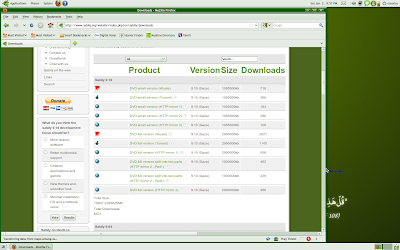
Ready to install Sabily 9.10 Gaza? Now I will share how to install it on a new system. I hope there is no problem for Sabily user to download a new Sabily 9.10 Gaza. For who did not get Sabily 9.10 Gaza ISO installation file yet, you can download it at Sabily.org download page. There are some link that you can choose, better select the faster transfer speed.

Sabily 9.10 Gaza download page.

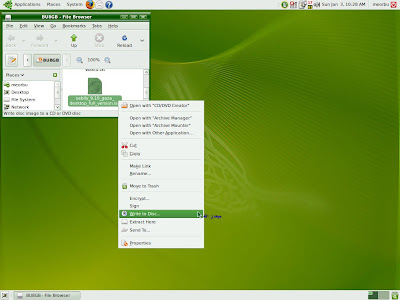
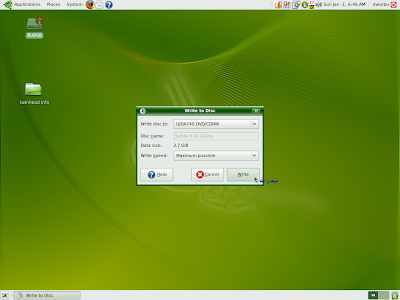
To install Sabily on a new system, we need to make bootable DVD disc or bootable flash drive from Sabily 9.10 Gaza's ISO file that we download before. At this time I will show how to make bootable DVD disc. If you are in Linux distros (in this example is Sabily 9.04), right click on your mouse and select 'Write to Disc...'. Write to Disc GUI will appear, put your empty DVD writable disc to your drive and click on Write button. Your disc will auto eject after writing to disc completed and your Sabily DVD disc now are bootable.

Right click on Sabily's ISO file and select Write to Disc...

Write to Disc GUI appeared. Put your empty disc and click Write.

If you are in Windows, you need Burning software for example Nero Burning Rom and select burn image file in order to make it bootable.

So now you have bootable Sabily DVD installation disc. On your new system, you need to select it BIOS first boot order is DVD and don't forget to select your installation Hard disc to second boot order. How to go to BIOS and select it boot order, please refer to your PC Mainboard manual.
After you finish setting your BIOS boot order, put your bootable Sabily DVD disc to DVD drive then restart your PC.

Sabily's GRUB xsplash screen menu will appear. If you just want to see what is inside Sabily and don't want to install it on you Hard disc yet, just press enter on 'Try Sabily without any change to your computer'. I will discuss about this live CD later.

Enter on 'Try Sabily without any change to your computer' to run Sabily on live CD.


To install Sabily, on your keyboard, use arrow down key to 'Install Sabily' and then, press Enter.
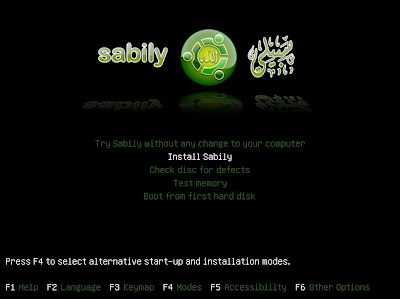

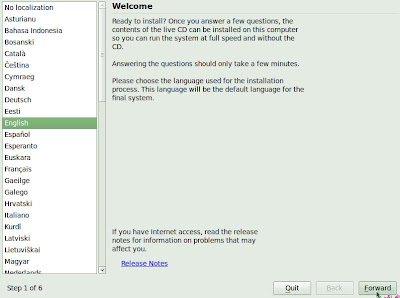
Wait until Welcome screen appeared. Select your language then click Forward.

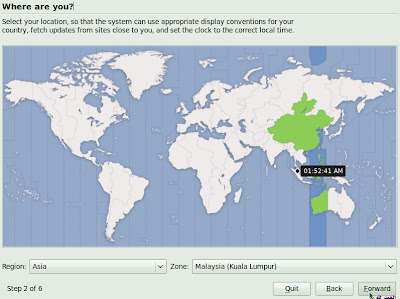
Where are you? State your location then click Forward.

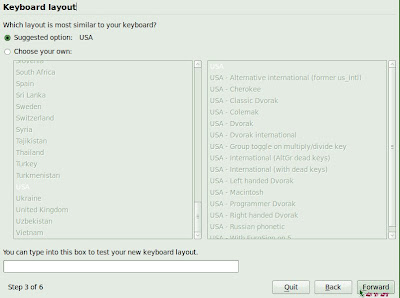
Select your keyboard layout then click Forward.

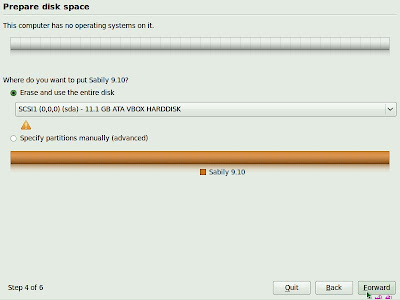
Prepare your disk space. You have option here, Erase and use entire disk or Specify partitions manually (Advanced). For easy installation, just select Erase and use entire disk then click Forward. I will discuss about Specify partitions manually (Advanced) later.

Enter you name, password, computer name and choose how you want to log in.
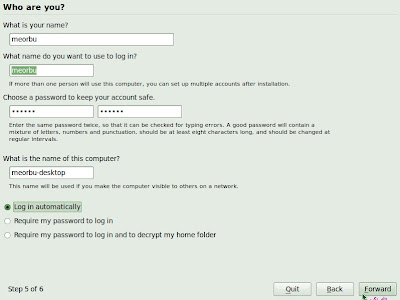

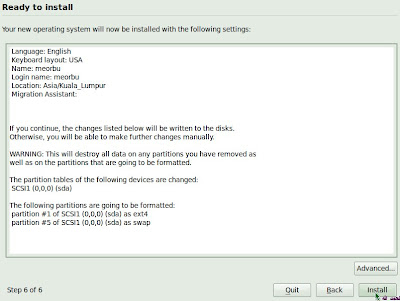
Ready to install. Click Install to start installation.

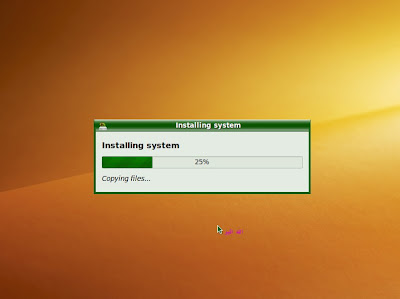
Installing system start. You have to wait about ten to twenty minutes.

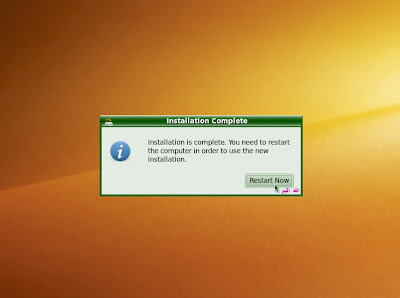
Wait until Installation Completed. Remove your DVD disc from DVD drive then click Restart Now.

After you restart, GRUB splash screen appear. Enter or just wait for 5 second and it will default boot to Sabily 9.10 Gaza.
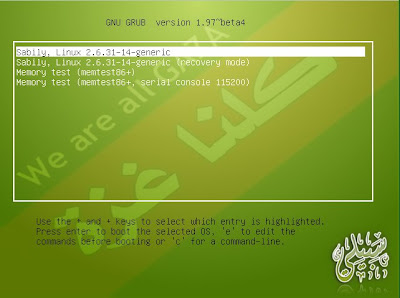

Sabily 9.10 Gaza now ready to perform.
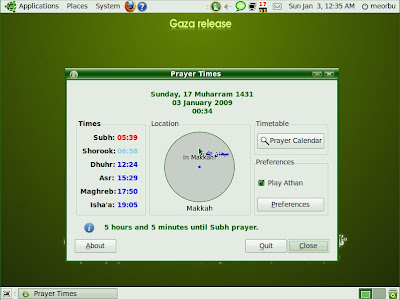

You already finished installing Sabily 9.10 Gaza on your new system. Now you can browse around this distro and hope you enjoy with a bundled of software especially Islamic that had installed inside it. Next we will discuss about installing hardware driver (graphics) and others free software out there. Enjoy..

Full Circle Magazine - Issue 32 Is Out

2 comments

Full Circle magazine issue 32 is out already. You can download it from here (English). For other language support, you can download it at full circle homepage.


This month topic :
  • Command and Conquer.
  • How-To: Program in Python – Part 6, The Perfect Server – Part 2, Installing Chromium (browser) and Offline Package Install.
  • My Story – Classroom Experiences, and How I Became An Ubuntu Woman.
  • My Opinion – Time To Review The Release Schedule? and Will Linux Ever Get It Right?
  • Review – Music Player Daemon.
  • MOTU Interview – Roderick Greening.
  • Top 5 – Media Centers.
  • Ubuntu Women, Ubuntu Games and all the usual goodness!
Enjoy reading...